
Work Order Management Software: How to Track Service Jobs From Creation to Closure
A customer calls about a broken unit. Someone notes it down, a coordinator phones a technician, and the technician says he’ll “go by this afternoon.” By evening, nobody can say whether the visit happened, what was done, or whether the job is closed.
Work order management software closes that gap by tracking every service job through a defined lifecycle, from the first request to verified closure. This guide covers what a work order is, the stages every job should pass through, how to track each one, and what to look for in a tool.
What Is a Service Work Order?
A service work order is a record of a job that needs to be done at a customer’s site. It captures what the work is, who will do it, where and when it happens, and what was completed.
Depending on the business, it may be called a job card, service ticket, service call or task. Typical examples include:
- Installing equipment at a customer location
- Repairing a faulty unit under warranty
- Visiting a site for an annual maintenance contract (AMC)
- Carrying out a scheduled inspection or maintenance round
A work order is useful only if everyone can see its status at any moment. For a broader definition and the common types, see this guide to what a work order is.
Why Work Order Tracking Breaks Down
Most service teams don’t have a process problem. They have a visibility problem. These issues come up repeatedly:
- Lost requests: Jobs live in calls, messages and notebooks, so some never get assigned.
- Unclear ownership: Nobody knows who is responsible once a job is “in progress.”
- No proof of work: A technician says the job is done, but there is no record of when, where or how.
- Missed deadlines: Without a timer on each job, SLA breaches surface only when the customer complains.
- Manual reporting: Managers rebuild status reports from spreadsheets every day.
Each of these traces back to the same cause: the work order lifecycle isn’t tracked in one place.
The 7 Stages of the Work Order Management Process
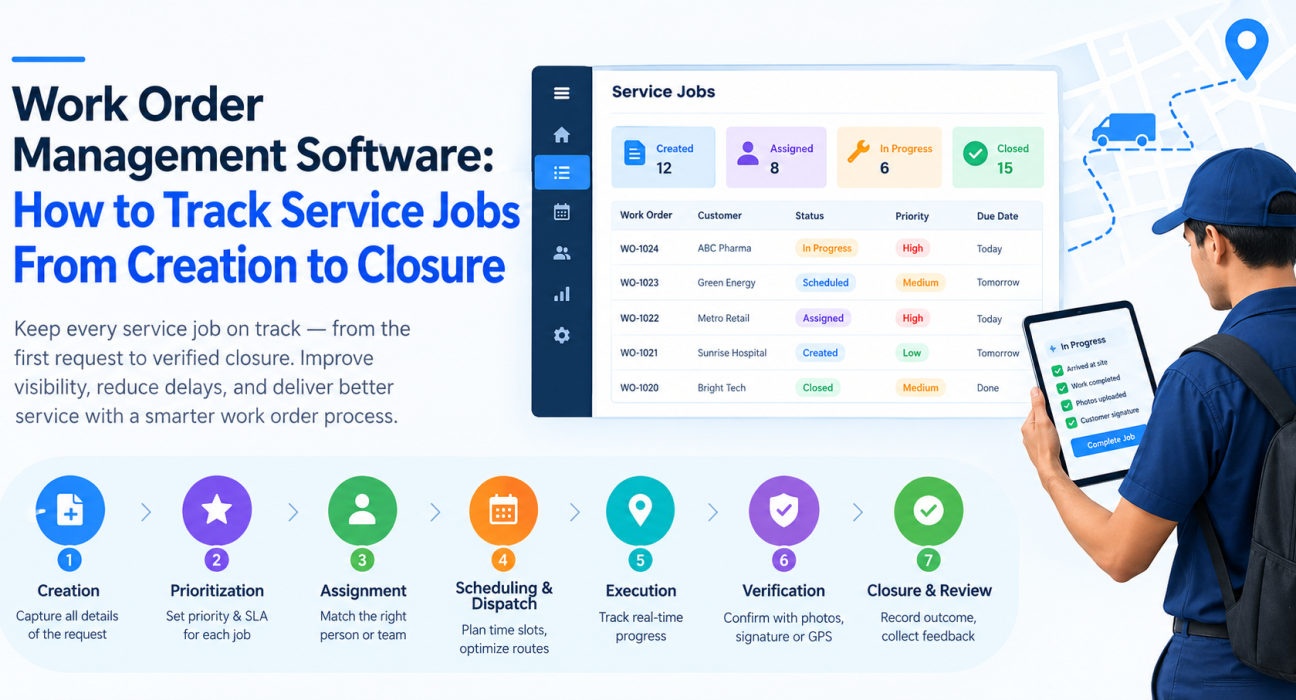
The work order lifecycle runs from request to closure in seven stages: creation, prioritization, assignment, scheduling and dispatch, execution, verification, and closure with review. Here is how to track each one.
1. Creation
Every work order starts with a complete record. Capture the customer, site address, issue or service type, contact person, priority and any deadline or SLA at the moment the request comes in. If a technician has to call the office to ask what the job is, time is already lost.
2. Prioritization
Not every job is equally urgent. A breakdown at a critical customer outweighs a routine visit. Give each work order a clear priority level and an SLA, so everyone knows which jobs come first.
3. Assignment
Assign each job to a specific person or team. Good assignment looks at location, workload and skill, not just who picks up the phone first.
Tracking tip: Every open work order should have exactly one owner. A job without an owner is a job that will be missed.
4. Scheduling and Dispatch
Once assigned, the job needs a time slot and a route. Group nearby jobs together to reduce travel, and make sure the technician receives the full job details on their phone, not through a relayed message.
5. Execution
This is the stage where visibility is usually lost. To track it, you need to know:
- Whether the technician has left for the site
- Whether they have arrived at the correct location
- Whether they followed the checklist for that job type
- Whether they are blocked and need help
6. Verification
Before a work order closes, there should be evidence the work was done. Useful proof includes photos of the work, a customer signature or OTP confirmation, a completed checklist or service form, and a GPS-verified arrival at the site.
7. Closure and Review
Close the work order only after verification. Record the outcome, time taken and any follow-up needed, then ask for customer feedback. This closed-loop data is what lets you improve response times and repeat-visit rates over time.
Work Order Statuses Every Team Should Track
Clear status labels make a job’s position obvious at a glance. A simple set works for most teams:
| Status | What it means | Who acts next |
|---|---|---|
| Created | Request logged, not yet assigned | Coordinator |
| Assigned | Owner chosen | Technician |
| Scheduled | Time slot and route set | Technician |
| In Transit | Technician heading to site | Technician |
| In Progress | Work started on site | Technician |
| Pending Verification | Work done, proof awaited or under review | Manager |
| Closed | Verified and completed | None |
| Escalated | SLA at risk or breached | Manager |
Rename these to match your operation. What matters is that every status has a clear owner and a clear next step.
Metrics That Show How Your Work Order Process Performs
Tracking tells you where a job is. Metrics tell you how well the process works. Start with these:
- Response time: Time from creation to assignment or first action
- Resolution time: Time from creation to closure
- SLA compliance: Share of jobs closed within the agreed time
- First-time fix rate: Share of jobs resolved in a single visit
- Open backlog: Jobs waiting for action
- Customer feedback: Satisfaction or NPS after closure
Pick a few that match your goals and review them on a regular schedule. Measuring too many at once usually means none get acted on.
Spreadsheets vs. Work Order Management Software
Many teams begin with spreadsheets and messaging groups. That can work for a handful of jobs. It stops working as volume grows.
| Area | Spreadsheets and messages | Work order management software |
|---|---|---|
| Status visibility | Updated manually, often late | Updated as work progresses |
| Assignment | Phone calls and messages | Sent to the technician’s phone |
| Proof of work | Verbal or unverified | Photo, signature or OTP captured |
| SLA tracking | Checked by hand | Timers and escalation |
| Reporting | Rebuilt manually | Generated from live data |
| Audit trail | Scattered | Recorded in one place |
What to Look For in Work Order Management Software
When you evaluate options, check for these capabilities:
- Structured job creation with checklists, priority and SLA
- A mobile app for technicians that works offline, since site connectivity is unreliable
- Live status and location visibility for managers
- Proof capture, such as photos, signatures and OTP, before a job can close
- SLA monitoring and escalation so at-risk jobs surface early
- Custom forms and workflows that match your job types
- Reports and KPIs drawn from real job data
- Integration options with your CRM, ERP, accounting or HR tools
How FieldExecutives Supports Work Order Tracking
Businesses looking to simplify this process can use field force management software such as FieldExecutives, which brings assignment, execution, proof and monitoring into one platform. Based on its published features, it supports the work order lifecycle like this:
- Assign and dispatch: Managers create tasks and visits with checklists, priority and an SLA. The right team member receives them on their phone, with suggestions based on location and workload.
- Guided execution: Technicians follow a job card that shows where to go, whom to meet and what to do or collect.
- Proof before closure: Photo, signature and OTP capture are required before a job can close.
- Geofence check-ins: Auto check-in by geofence confirms the technician reached the right site.
- Live visibility: A real-time map and GPS trail show where each team member is and what status each job is in.
- SLA monitoring: SLA timers and escalation flag jobs that are at risk.
- Offline-first mobile app: Field staff can capture work without a network, and data syncs when they reconnect.
- Custom forms and workflows: Teams can build their own job types, checklists, approvals and forms without writing code.
You can explore the full FieldExecutives features, or see how it applies to the field service and repair industry. Because it is a full field force management platform, work orders can run alongside attendance, routes, expenses and collections in the same system.
Best Practices for Work Order Management
- Define your statuses first. Agree on what each one means before you roll out any tool.
- Make key fields mandatory. Customer, address, issue type and priority should be required at creation.
- Assign a single owner per job. Avoid shared responsibility on any open work order.
- Require proof before closure. Treat “done” as unverified until evidence is attached.
- Set SLAs by priority. Use different response and resolution targets for urgent and routine jobs.
- Review the backlog daily. Check open and escalated jobs at the start of each day.
- Close the feedback loop. Use customer feedback and repeat-visit data to refine your process.
- Train the field team. A tool only works if technicians update jobs consistently.
Conclusion
Tracking a service work order from creation to closure comes down to four things: a complete record at the start, clear ownership, visible progress, and proof before closure. When those are in place, missed jobs, unclear status and disputed visits drop sharply.
The right work order management software makes this routine instead of manual. It gives managers a live view of every job, gives technicians a guided workflow, and gives customers a more reliable service experience.